Screenshots
Everything, one click away.
Right in your menu bar.
The real Chargy 2 popover on macOS. Click any screenshot to see it full size.
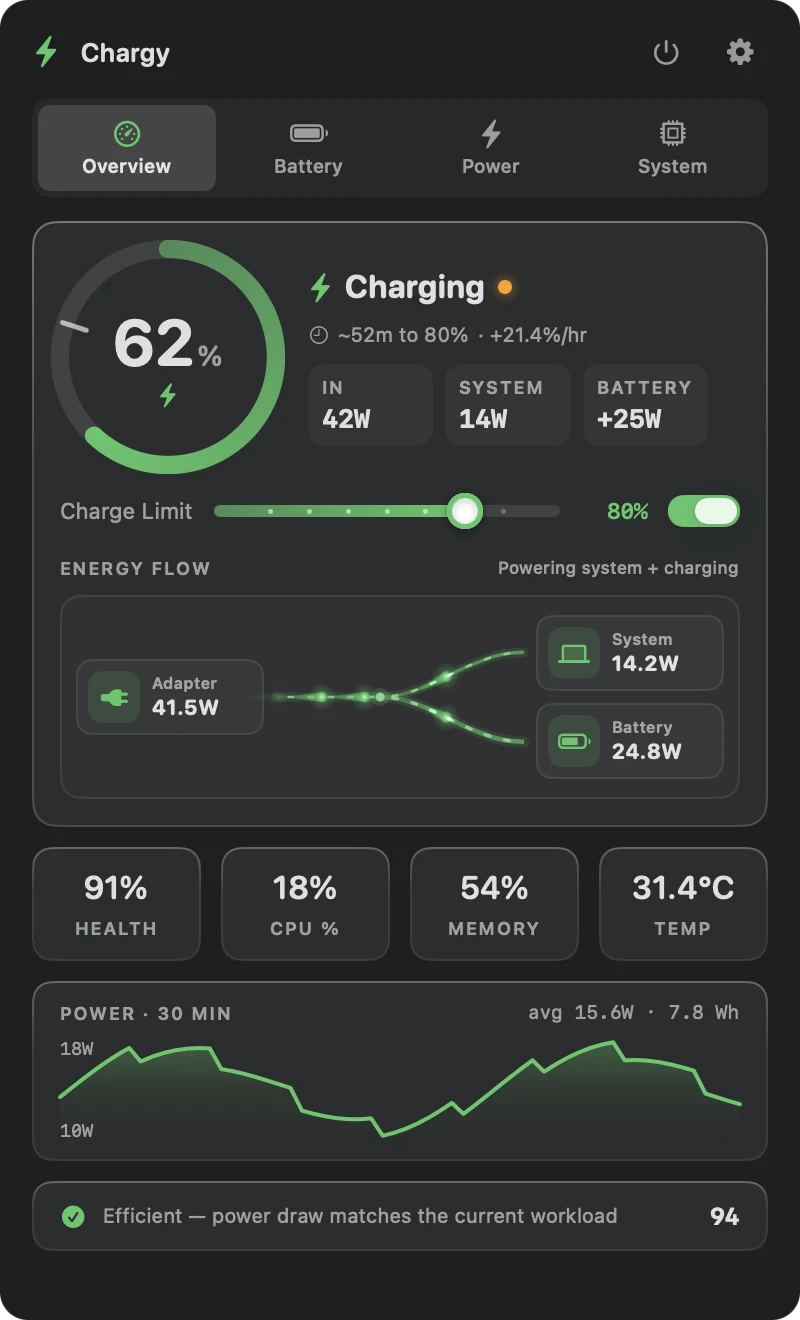
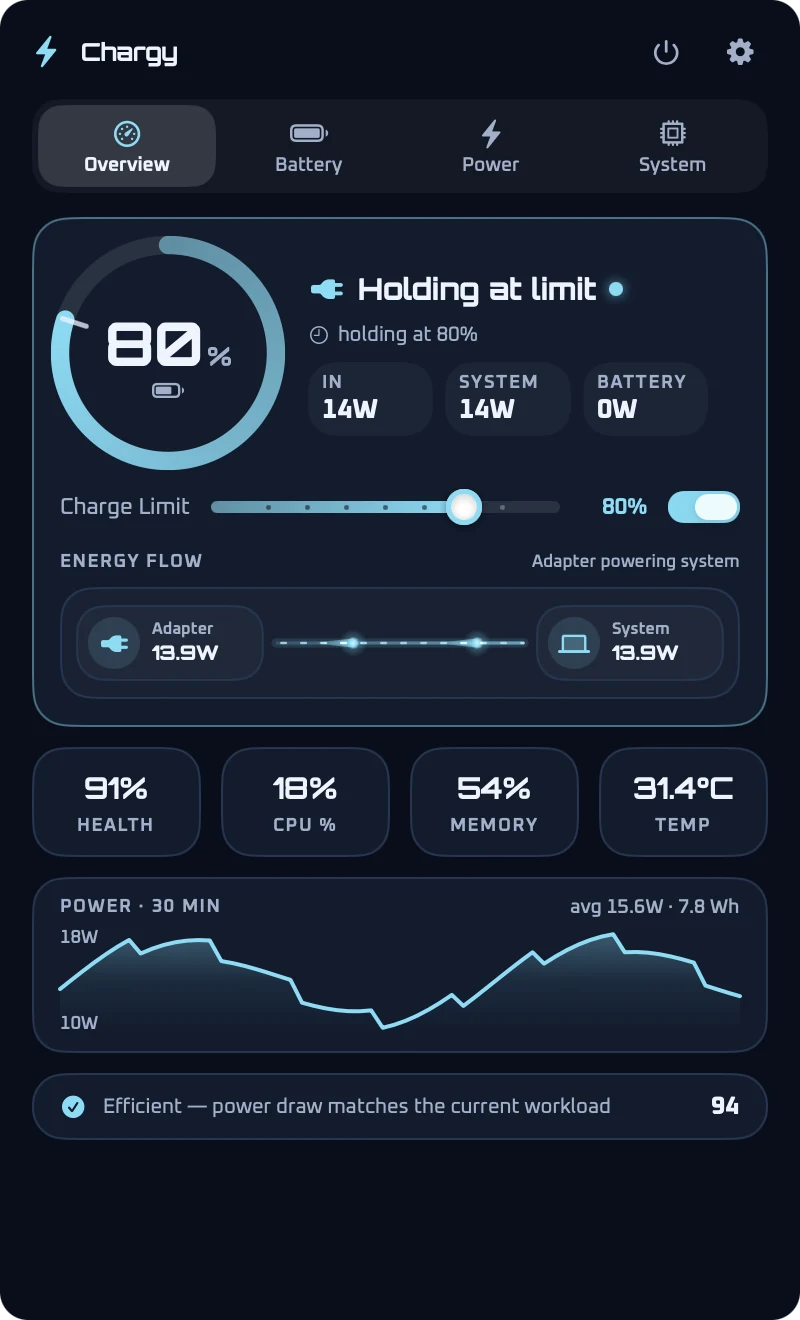
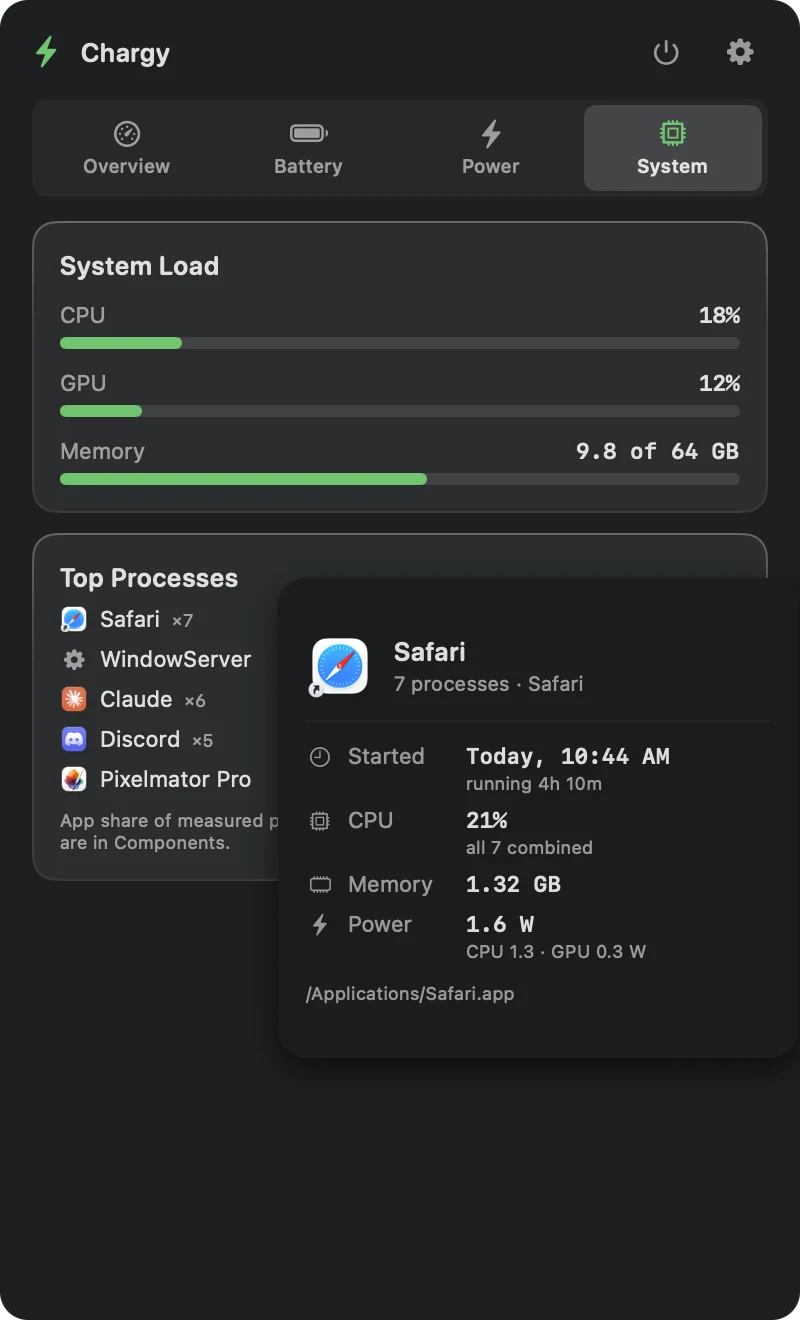
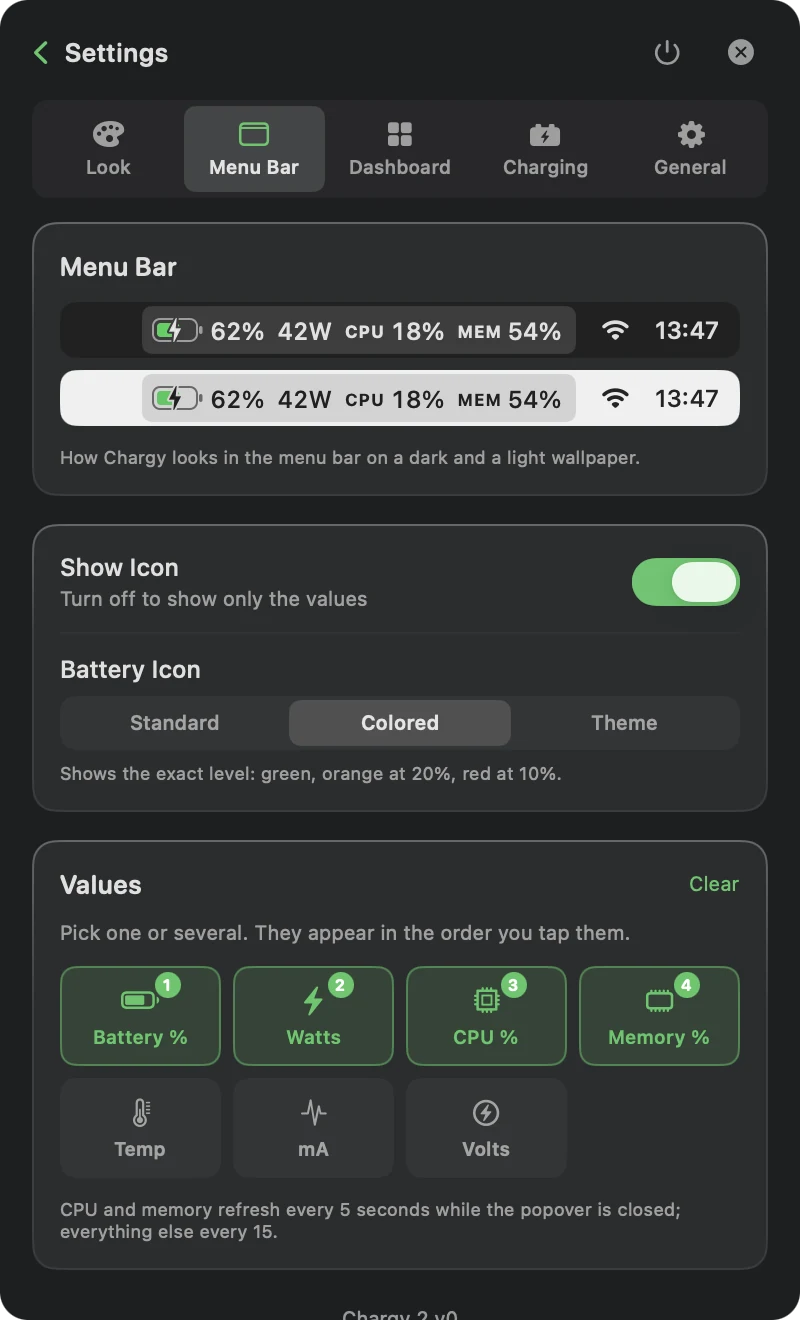
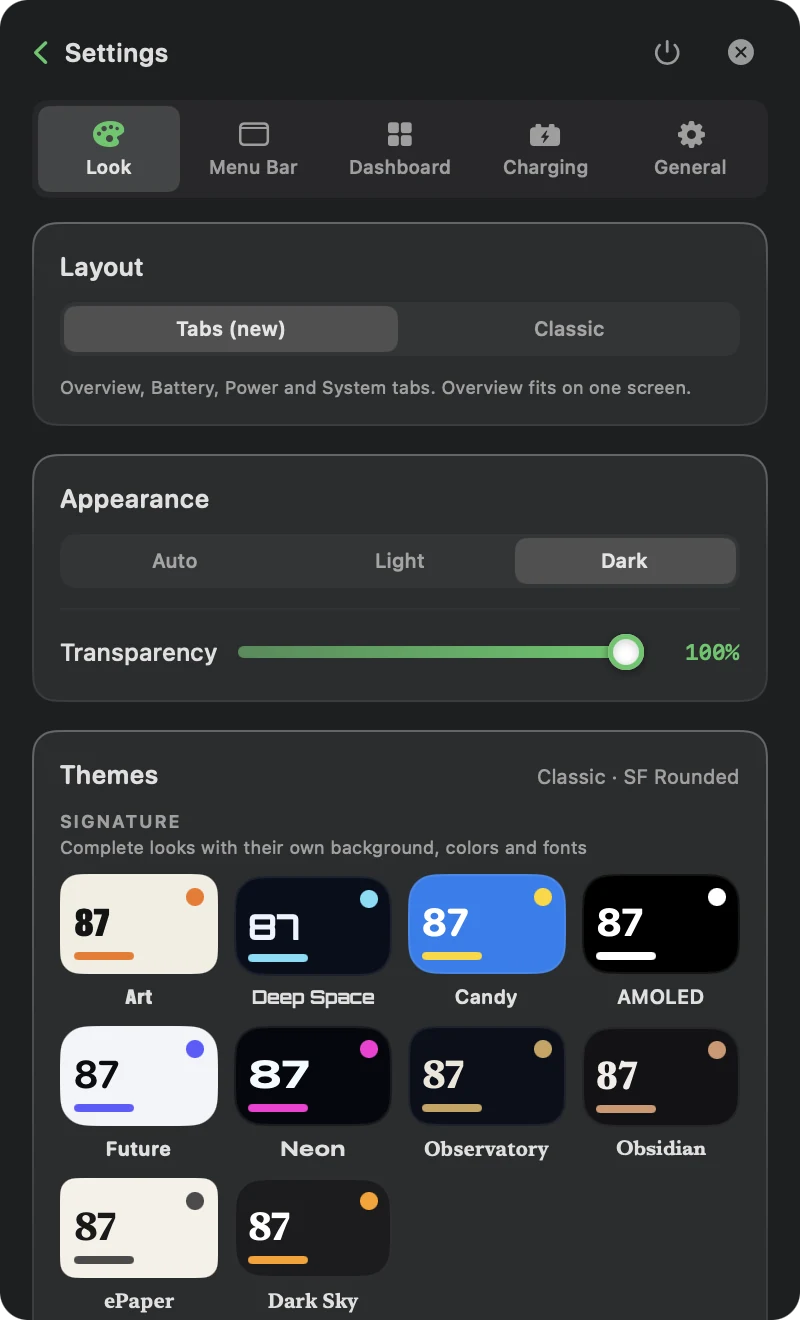
Chargy 2 is a lightweight macOS menu bar app that extends your MacBook battery lifespan with smart charge limits, real-time power monitoring, connected USB-C cable details, MagSafe LED control, and automatic calibration.
The real Chargy 2 popover on macOS. Click any screenshot to see it full size.
Chargy 2 packs more battery management features into a tiny menu bar app than most paid alternatives. And it's completely free.
Set any charge limit from 20-100%. Chargy 2 uses direct SMC control to stop charging at your target and even drains the battery if above the limit. Keeps your battery at the optimal level 24/7. Changes apply within 5 seconds — the daemon uses a low-frequency polling loop by design so it doesn't waste CPU or energy.
Your MagSafe LED becomes meaningful. Green when holding at your charge limit. Orange when actively charging. Chargy 2 controls the ACLC SMC key directly for instant visual feedback.
Connect a USB-C cable or device and Chargy can reveal the active port, connection type, data capability, power profile, and cable identity that macOS exposes.
The cable card is separate from Quick Stats, enabled by default, and can be hidden anytime in Settings.
Live wattage, voltage, amperage, and temperature from IOKit. See exactly how much power your Mac draws, refreshed every few seconds.
Battery health percentage, cycle count, design vs current capacity, charge state, and detailed raw IOKit data all in one view.
SQLite-backed charts spanning 30 minutes to 30 days. Automatic data aggregation from raw readings to minute and hourly averages.
5-phase calibration cycle modeled after batt: discharge to 15%, charge to 100%, hold for 1 hour, then drain back to your limit. Fully automatic on schedule.
Choose what you see in your menu bar: watts, battery %, amperage, voltage, temperature, or just the icon. Updates live as readings change.
Auto-detects your Mac's firmware at startup. Full support for both the macOS Tahoe and pre-Tahoe SMC key protocols.
See which apps are draining your battery the most. Real-time per-process power estimation based on CPU usage and total system draw.
Smart prediction based on real usage sampling. Shows charge/discharge rate per hour and estimated time remaining or time to full.
One-click complete removal. Unloads the daemon, deletes system files, clears preferences, removes history database, and the app itself.
A lightweight root-level daemon handles SMC writes. File-based IPC keeps the app sandboxed while the daemon does the heavy lifting. Clean SIGTERM shutdown.
A built-in algorithm continuously evaluates your charging efficiency based on real-time power draw, battery health, and usage patterns. Get a live 0–100 efficiency score with a plain-English tip to optimize your battery longevity.
Designed to never be a burden on your system. The background daemon sleeps between checks and the menu bar app uses relaxed polling intervals. Chargy 2 keeps resource usage minimal so it doesn't drain the battery it's trying to protect.
Download the DMG, drag to Applications. Launch from your menu bar. One click to install the background helper.
Slide to your ideal charge percentage. Most experts recommend 40-80% for maximum battery longevity. Changes apply within seconds.
Chargy 2 maintains your battery automatically. Drains when above target, charges when below. Your MagSafe LED tells you the state at a glance.
Download Chargy 2 for free. No account needed. No subscription.
Yes. Chargy 2 uses the same SMC (System Management Controller) keys that Apple's own battery management uses. The background daemon runs with proper launchd integration and performs a clean shutdown on exit, restoring all SMC keys to their default values.
No. Chargy 2 uses the same software-level SMC controls that other well-known tools like batt and AlDente use. It does not modify firmware or hardware. Apple's own macOS uses the same keys for Optimized Battery Charging.
No. Chargy 2 is designed exclusively for Apple Silicon Macs (M1, M2, M3, M4 and newer). The SMC keys and IOKit APIs differ between Intel and Apple Silicon architectures.
Most battery research suggests keeping lithium-ion batteries between 20-80% for maximum longevity. A common recommendation is 40-80%. Choose what fits your usage — Chargy 2 makes it easy to adjust anytime.
When a USB-C connection is active, Chargy can show the port, connection type, active transports, data-speed capability, negotiated power profile, cable power rating, and e-marker identity when macOS exposes them. The cable card is enabled by default, stays separate from Quick Stats, and can be hidden in Settings.
Chargy 2 automatically detects when you unplug and clears all charging/adapter states. Your Mac runs normally on battery. When you plug back in, Chargy 2 resumes managing the charge limit.
Chargy 2's auto-calibration follows a 5-phase process: (1) Discharge to 15% by disabling the adapter, (2) Charge to 100%, (3) Hold at 100% for 1 hour to let the battery management system recalibrate, (4) Drain back to your charge limit, (5) Restore normal operation. You can schedule this to run automatically.
Open Chargy 2, go to Settings, and click "Uninstall Chargy 2." This removes the background helper, system files, preferences, history database, and the app itself in one click.
Chargy 2 checks for updates on launch and offers optional, opt-in anonymous analytics (battery health, Mac model, app version). No personal data is collected. You can enable or disable analytics anytime in Settings. All monitoring data stays on your Mac.
By design. Chargy 2's background daemon checks for config changes every few seconds instead of constantly polling. This means a setting or charge limit change may take up to 5 seconds to take effect. This deliberate trade-off keeps CPU and energy usage low — the daemon spends most of its time sleeping so it doesn't unnecessarily drain your battery.
No. Chargy 2 is built to be lightweight. The background daemon wakes briefly every few seconds, checks one config file, reads a few SMC values, and goes back to sleep. The menu bar app uses relaxed polling intervals for data collection. It's designed to protect your battery, not drain it.